
What does ATMOS measure?
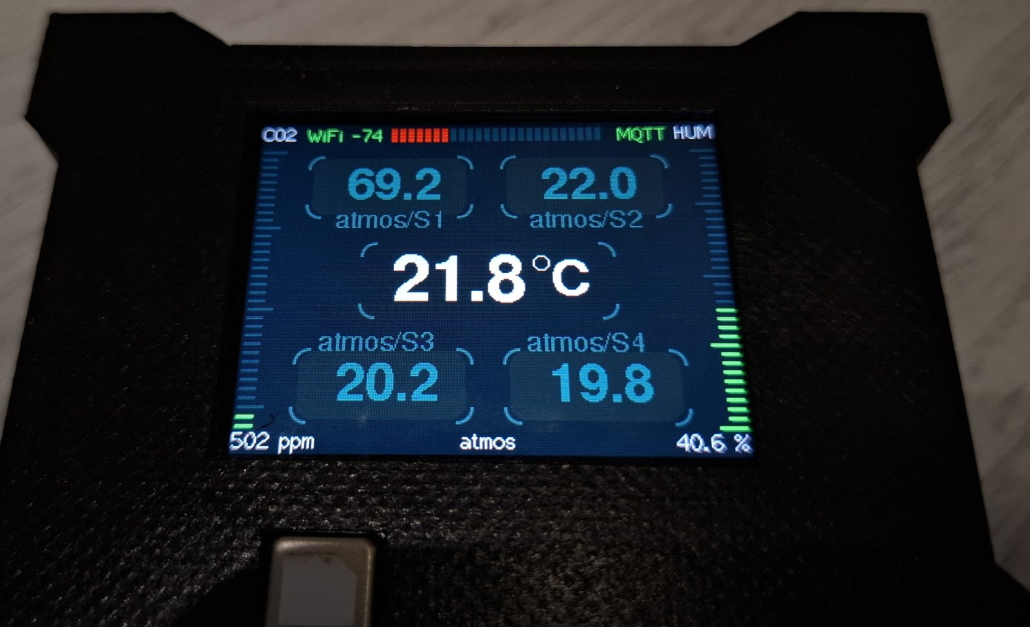
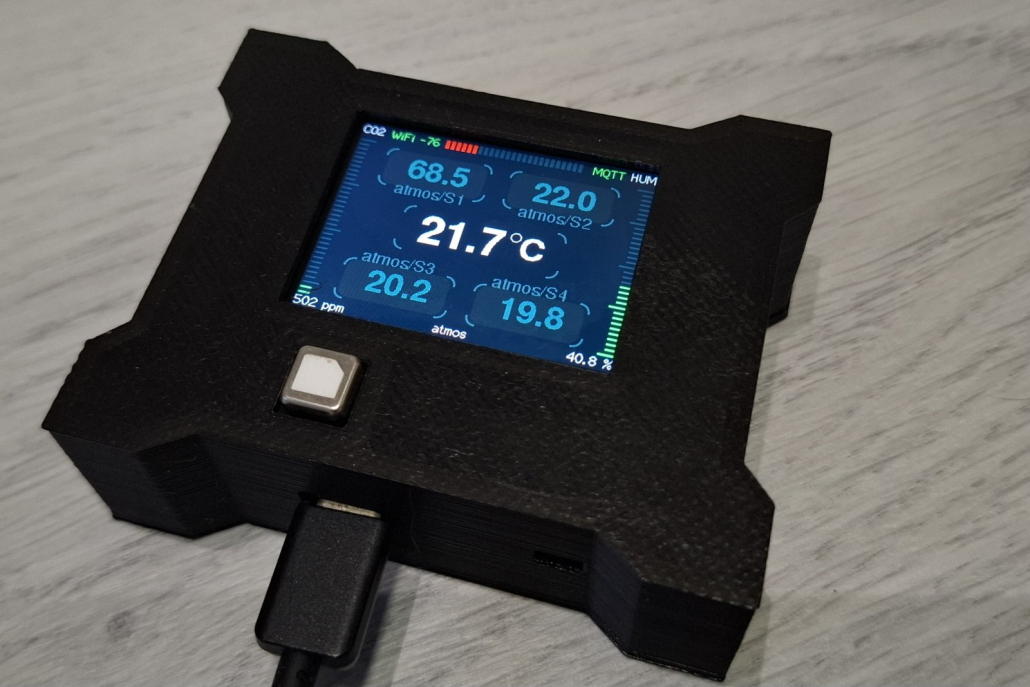
ATMOS is equipped with built-in sensors for:
-Temperature
-Relative humidity
-CO₂ (air quality)
All measured data is automatically sent to Home Assistant via MQTT.
The system works fully locally, without cloud services or external dependencies.
What can ATMOS display?
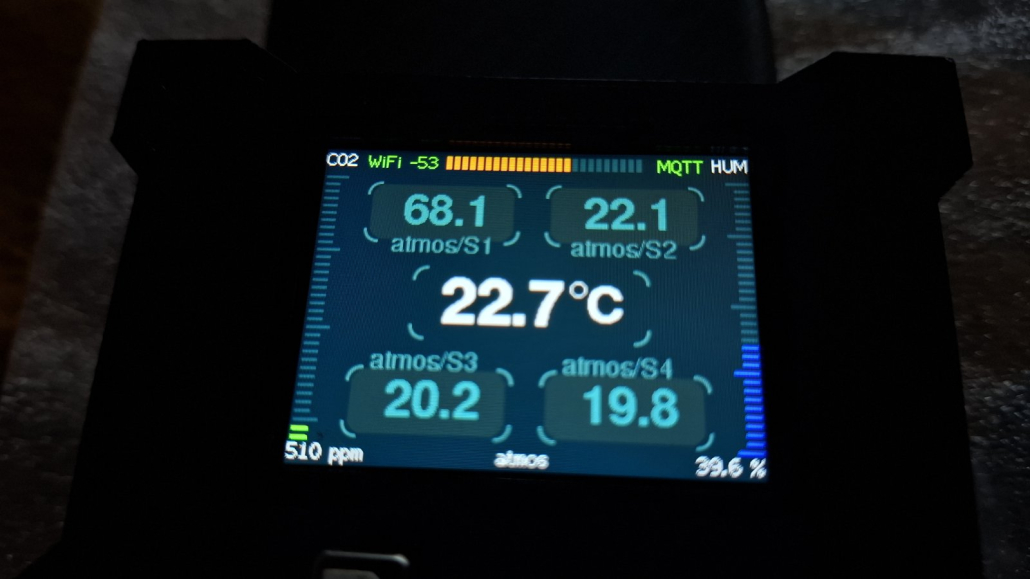
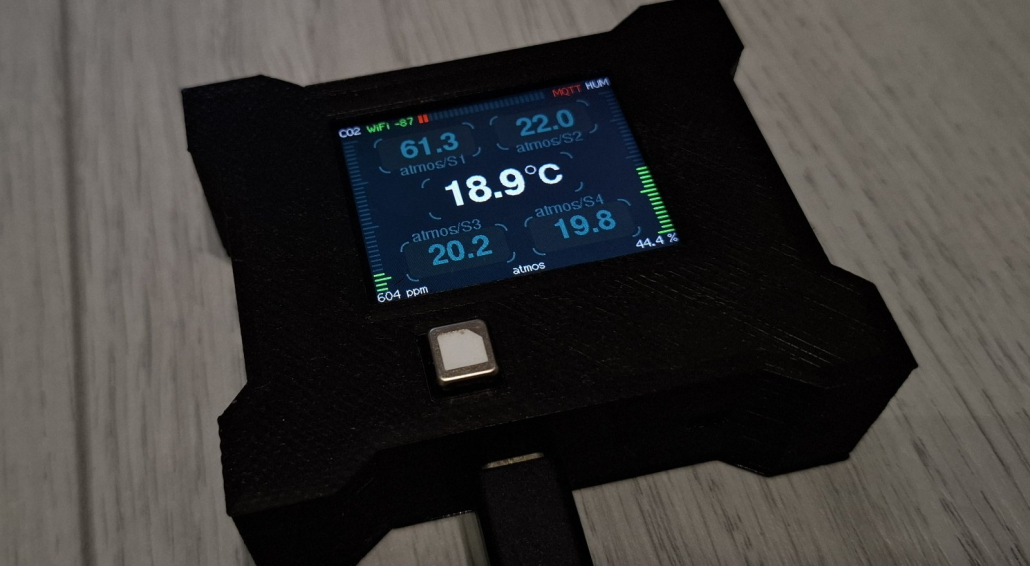
Up to 8 sensors from Home Assistant
-Any Home Assistant entity (temperature, humidity, CO₂, pressure, custom sensors, etc.)
-Large, clear, and easy-to-read values
-Measurement units and sensor names (user-defined)
The user has full control over which sensors are displayed, regardless of whether the data originates from ATMOS itself or from other devices within the Home Assistant system.
Home Assistant integration
-Bidirectional communication via MQTT
-ATMOS sends its own sensor data to Home Assistant
-Home Assistant sends selected sensor data to the ATMOS display
-Configuration is done using Home Assistant automations
-Fully local operation, no internet connection required
Typical use cases
-Displaying room temperatures from multiple areas
-Monitoring CO₂ levels and indoor air quality
-Combining local and remote sensor data
-Central information display for boiler rooms, offices, or living spaces
Why ATMOS?
-Measures and displays data in a single device
-Displays up to 8 Home Assistant sensors on one screen
-Fast and reliable MQTT communication
-Fully local solution
-Designed specifically for Home Assistant
Home Assistant Setup
MQTT Integration with Home Assistant
ATMOS is designed for seamless integration with Home Assistant using MQTT communication.
To ensure proper operation, an MQTT broker (such as Mosquitto) must be configured in your Home Assistant environment.
ATMOS works fully locally and does not require any cloud services or internet access.
Automatic Device Discovery
Thanks to MQTT Discovery, ATMOS and its built-in sensors are automatically detected by Home Assistant as soon as the device connects to the MQTT broker.
No manual configuration in configuration.yaml is required, and no additional integrations need to be installed.
Device Representation in Home Assistant
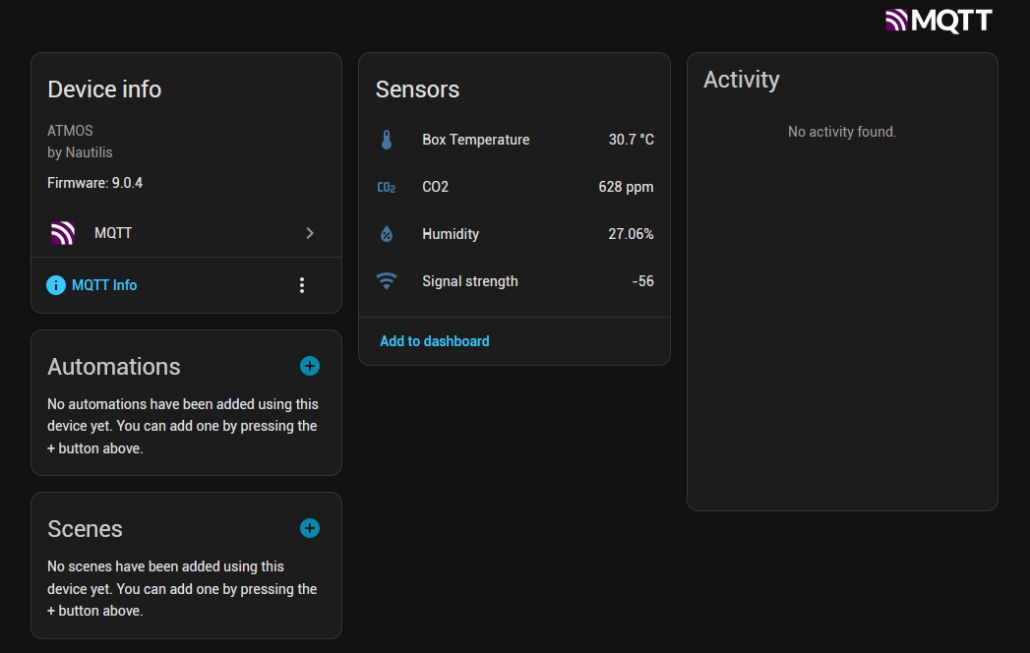
Once connected, ATMOS appears in Home Assistant as:
-
A device containing built-in sensors:
Temperature, Relative humidity & CO₂ (air quality)
These sensors update in real time and can be used like any other Home Assistant entity.
Bidirectional MQTT Communication
ATMOS supports two-way MQTT communication:
-
ATMOS → Home Assistant
Sends its own sensor data (temperature, humidity, CO₂). -
Home Assistant → ATMOS
Sends values of up to 8 selected Home Assistant entities to be displayed on the ATMOS screen.
This allows ATMOS to act as a central display for data coming from across your Home Assistant system.
Display Configuration via Home Assistant
Which sensors are shown on the ATMOS display is entirely controlled from Home Assistant.
Using Home Assistant automations, the user can:
-
Select up to 8 HA entities to display
-
Send sensor values via MQTT
-
Define custom units and sensor names
-
Mix local ATMOS sensors with external Home Assistant sensors
No configuration changes on the device firmware are required.
Nautilis Device Management Interface
Local Device Configuration (No Internet Required)
ATMOS includes a built-in local management interface.
To access it:
-
Connect to the WiFi access point broadcast by the device (usually named ATMOS).
-
Open a web browser.
-
Navigate to:
http://192.168.4.1
The management interface allows you to view and configure device settings directly.
Available Settings
Configuration
-
WiFi network credentials
-
MQTT broker address and credentials
After saving changes, the device must be restarted — either manually or via the Reboot option in the management interface.
Device Management
-Selecting the temperature unit of measurement,
-rotating the screen,
-calibrating the temperature sensor
Firmware Update (OTA)
ATMOS supports Over-the-Air (OTA) firmware updates.
-
Open the Firmware Update menu
-
Upload the latest firmware file
-
Once confirmed, the device will update automatically
No physical connection or disassembly is required.
Example Home Assistant Automation (Single Sensor)
This example shows how to send one Home Assistant sensor value to ATMOS using MQTT.
Whenever the sensor value changes, the updated value is sent to ATMOS and displayed on the screen.
Explanation
-
Trigger
The automation runs every time the sensor value changes. -
MQTT Topic
atmos/S1defines the display slot on the ATMOS device
(S1–S8 are supported). -
Payload
The current sensor value is sent as plain text. -
Retain: true
Ensures ATMOS receives the last value even after restart.
Notes
-
You can send any Home Assistant entity (temperature, humidity, CO₂, pressure, custom sensors, etc.).
-
Each sensor should use its own topic:
-
atmos/S1 -
atmos/S2 -
…
-
atmos/S8
-
-
For multiple sensors, simply create additional automations or extend this pattern.


